Travian Alliance Attack Alerts: Telegram and Discord
For shared defence calls and member commitments, see Alliance Command.
Get a message when an ally is attacked
Vangrd reads your alliance reports and tells you when an ally you watch is attacked or raided.
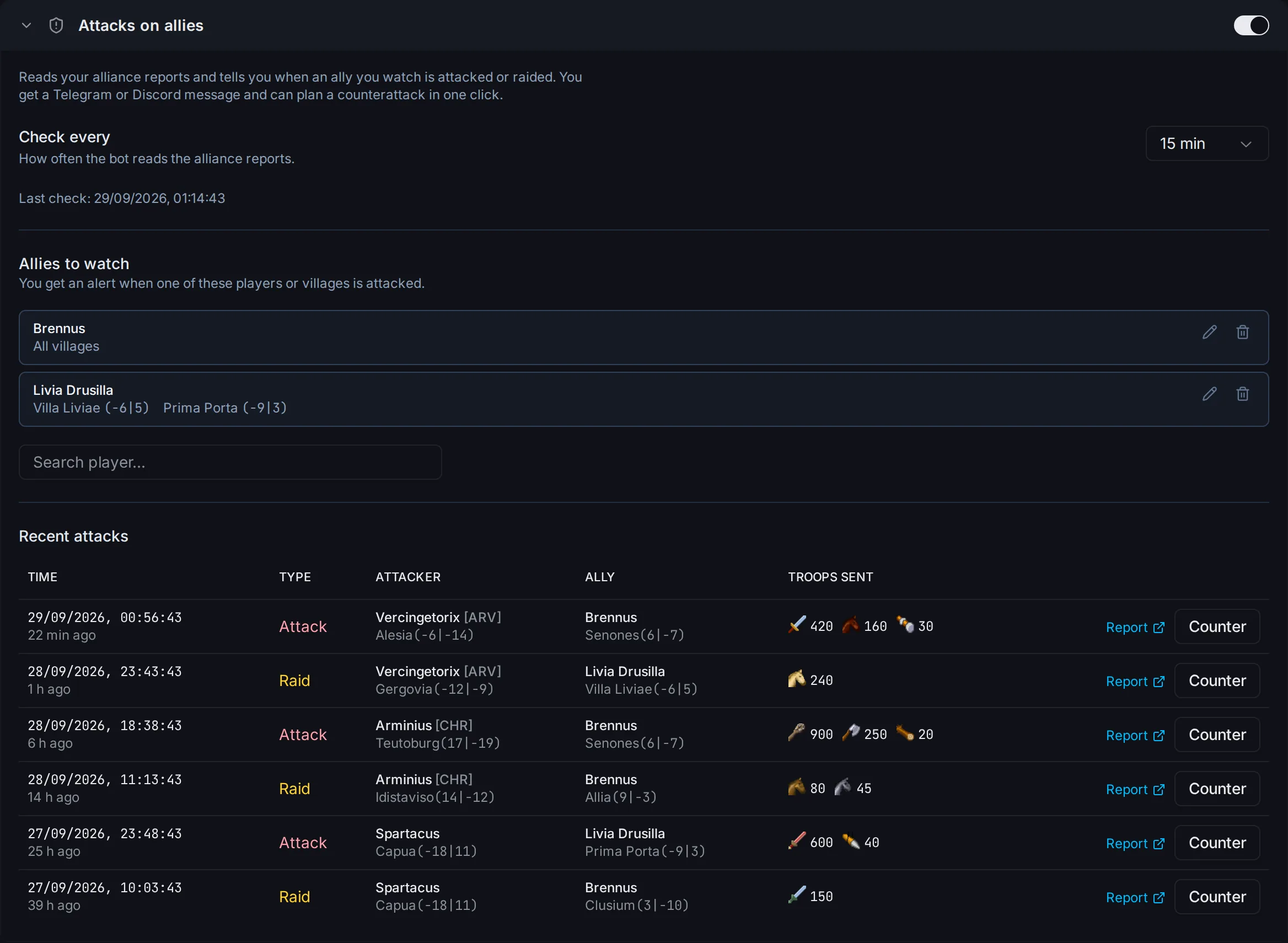
Turn on alerts and pick allies
The alerts are off by default.
- Open
Alliancein the sidebar. - Turn on the switch in the
Attacks on alliesheader. - Set
Check everyto a value from 10 to 60 minutes. The default is 15. - Under
Allies to watch, type a player name inSearch player...and pick the player. - Choose
All villages, or chooseOnly these villagesand tick the villages. - Press
Add.
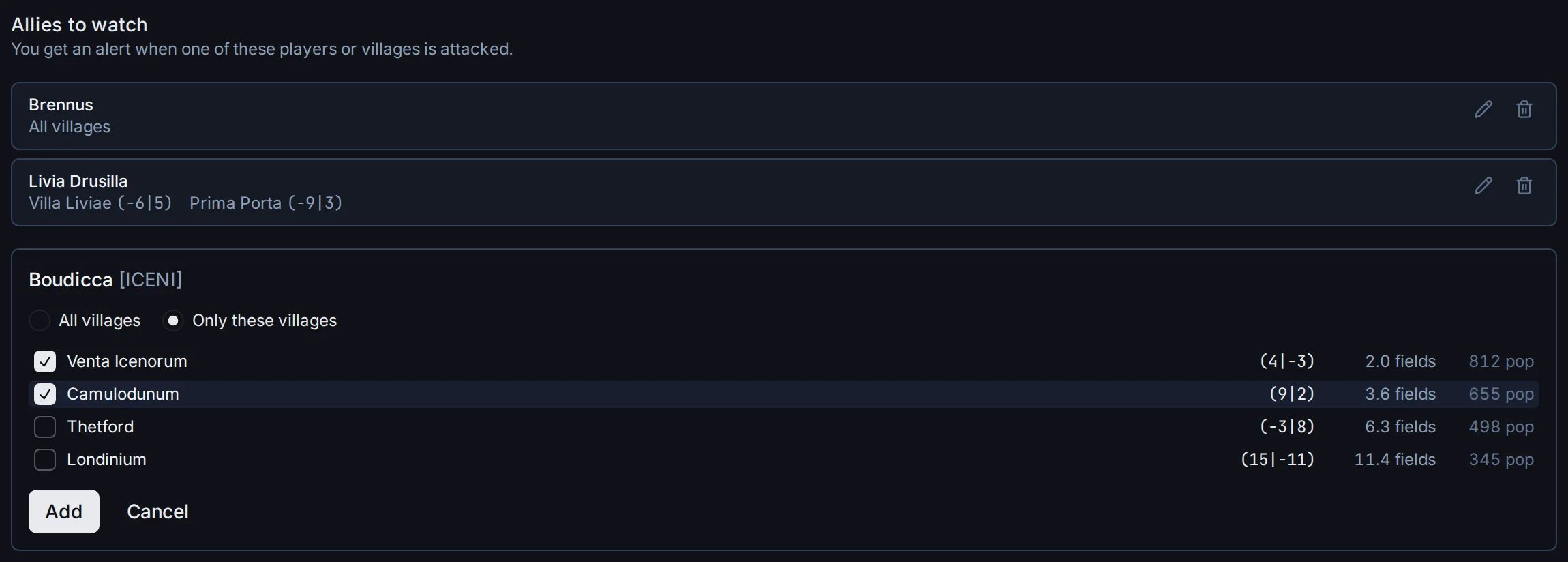
- Only players and villages on this list give alerts.
- The village list shows the distance from each village to your nearest village.
- Use the pencil to change an ally and the bin to remove one.
Where the alerts go
Each alert goes to two places.
- The
Recent attackstable in the same section. It keeps the last 48 hours. - Telegram and Discord, when you connect them on the
Notificationspage. See the next section.
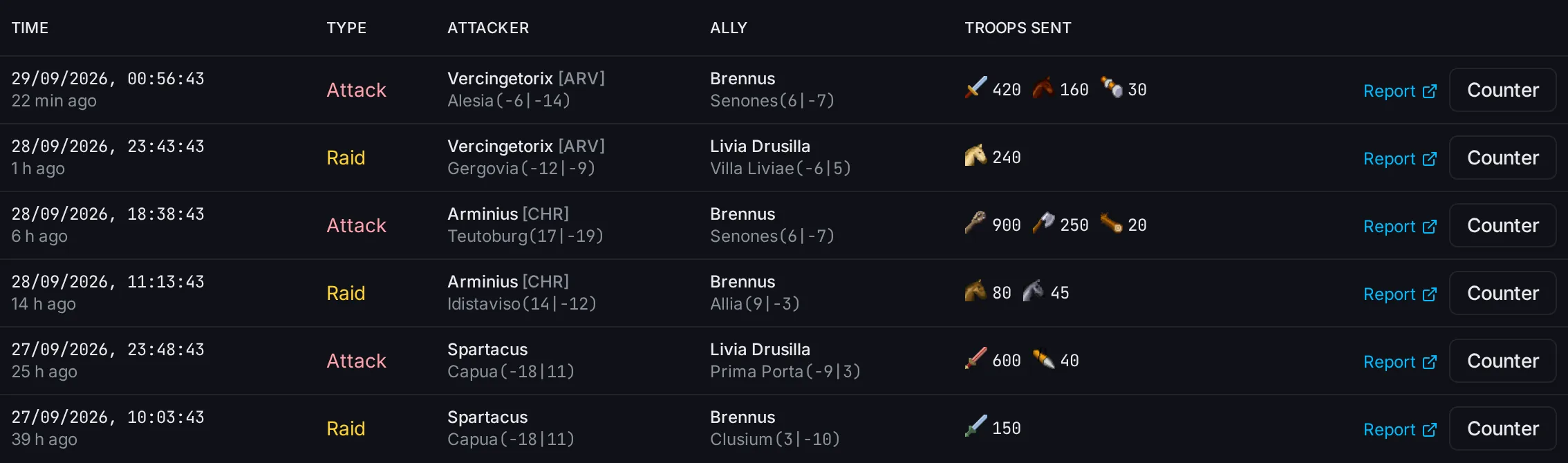
A Telegram message looks like this:
⚔️ Ally attacked: 1 new report

Attack at 15:18:00 server time
Vercingetorix [ARV] Alesia (-6|-14) -> Brennus Senones (6|-7)
Troops sent: 420 Swordsman, 160 Haeduan, 30 Ram (lost 85)
Open report
Connect Telegram or Discord
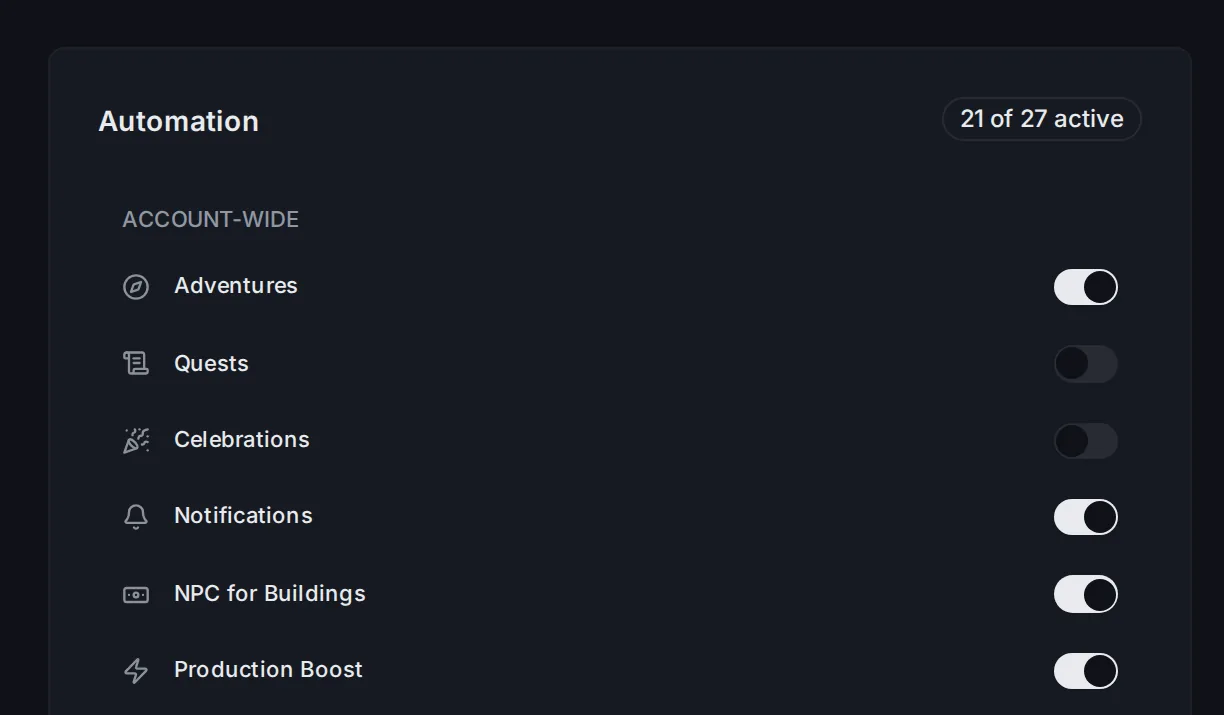
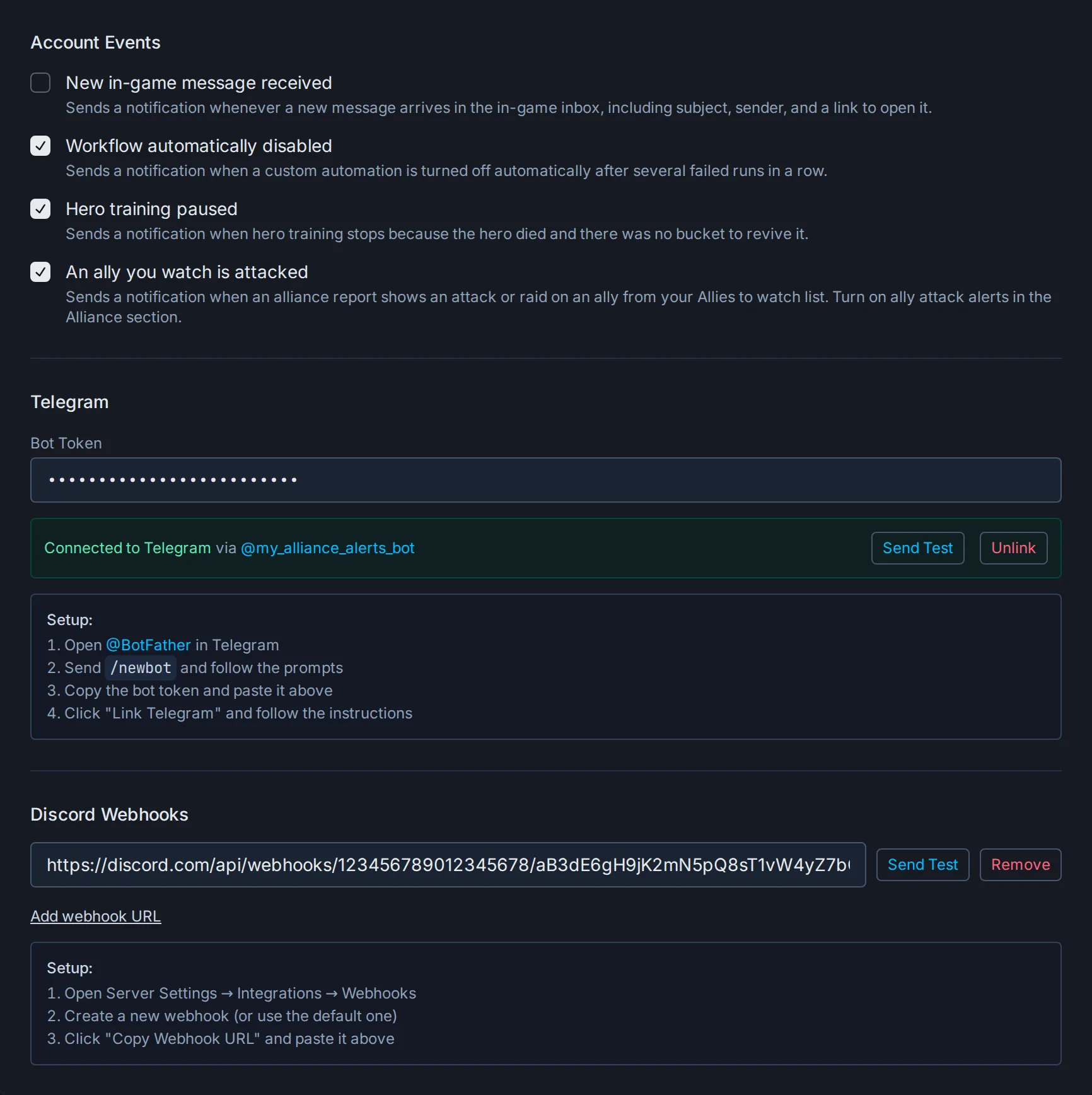
Open the Dashboard. In the Automation card, turn on the Notifications switch, then click Notifications to open its page.
- Keep
An ally you watch is attackedticked. It is on by default.
Telegram:
- Open @BotFather in Telegram and send
/newbot. - Copy the bot token and paste it into
Bot Token. - Click
Link Telegram. - Open your new bot in Telegram and press
Start. - Click
Link Telegramagain. The page showsConnected to Telegram. - Press
Send Testto check that messages arrive.
Discord:
- In Discord, open Server Settings, then Integrations, then Webhooks.
- Create a webhook and click Copy Webhook URL.
- In Vangrd, click
Add webhook URLand paste the URL. - Press
Send Test.
Tip: Press
Send Testafter you connect a channel. If no test message arrives, no ally alert arrives either.
Plan a counterattack
Press Counter on a row in Recent attacks. Counter Attack opens with the report data filled in.
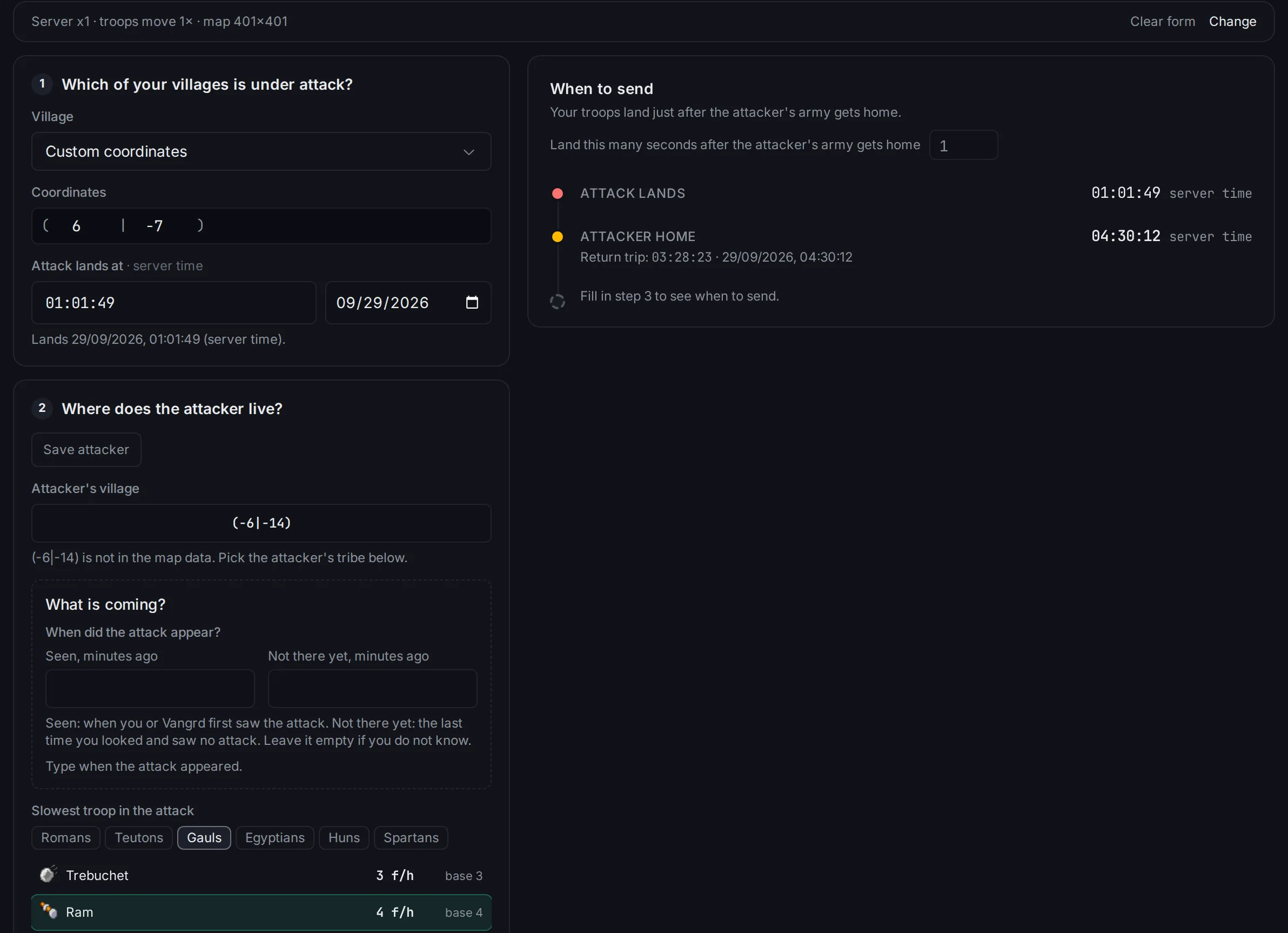
- Vangrd fills in the attacked ally village, the attack time, the attacker's home village, and the slowest unit that survived.
- You pick the village to send from and your troops.
When to sendgives the time to land just after the attacker's army gets home.
To send the waves on time, use the Attack Planner.
When Vangrd checks
- Vangrd checks the alliance reports only while the account is in a session.
- It does not start a session to check.
- Attacks from a sleep block or a break do not give an alert later.
To change when the account plays, see Schedules and Safety. For attacks on your own villages, see Automated Defense.
Frequently asked questions
How do I set up ally attack alerts?
Open Alliance in the sidebar and turn on the Attacks on allies switch. Pick how often to check in Check every. Under Allies to watch, search a player, choose All villages or Only these villages, and press Add.
Where are the alerts sent?
Every alert shows in the Recent attacks table in the same section. Vangrd also sends it to Telegram and Discord if you connect them on the Notifications page. Open it from the Automation card on the Dashboard.
Which attacks give an alert?
An attack or raid on a player or village from your Allies to watch list, where the ally lost troops or lost the fight. Vangrd reads these from your alliance reports.
Do I get alerts while the account sleeps?
No. Vangrd checks the alliance reports only while the account is in a session. Attacks from a sleep block or a break do not give an alert later.
Vangrd is a Travian bot that runs your account from the cloud, 24/7. Before you choose, see the best Travian bot 2026 comparison.
More guides
Travian Defense Bot: Auto-Dodge, Reinforcements, and Attack Alerts
Set Travian defense per village and threat level: auto-dodge, call reinforcements, spend or ship resources, and get Discord or Telegram alerts.
Travian Oasis Farming: Clearing, Raiding, and Hero XP
Set up Travian oasis farming end to end: scan nearby oases, clear the animals safely, raid the respawns on a schedule, and level your hero on them.
Travian Auto Builder: Automate Building Queues and Upgrades
Set village build plans, account defaults, reusable templates, and template application in Vangrd's building automation.