Travian Bot Status: See What Your Bot Does and Why
The Status page at a glance
The Status page shows what your Travian bot does now, what runs next, and what already ran. Open it from the sidebar.
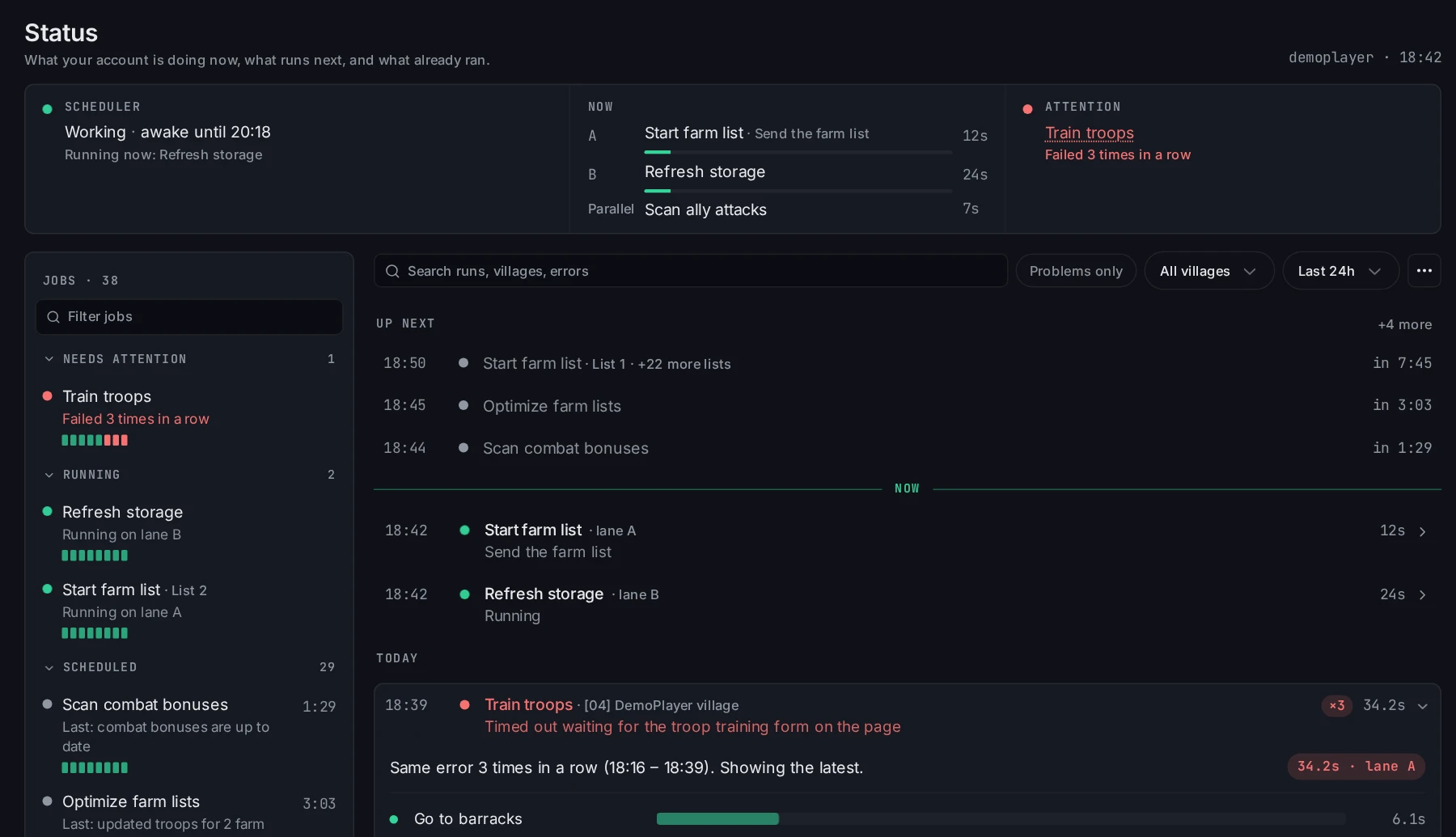
The page has three parts:
- The Now strip at the top: the scheduler, the running jobs, and the jobs that need you.
- The job list on the left: every job, sorted by what it does now.
- The run timeline on the right: next runs above the
Nowline, past runs below it.
See what runs now
The Now strip answers "is my bot working?" in one look.

Schedulersays if the account works or sleeps, and until when.Nowshows the job on each lane, its current step, and how long it has run.Paralleljobs run next to the lanes.Attentionnames the jobs that failed. Click a name to open that job.
When Attention says All clear, no job needs you.
Find a job in the job list
The job list puts every job in one of five groups.
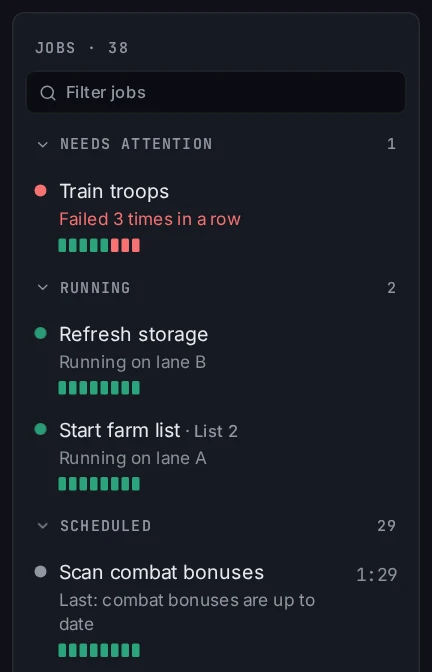
Needs attention: the last runs failed.Running: the job runs now.Scheduled: the job runs at the time on the right.Waiting for a condition: the job runs when the game state allows it, for example when resources arrive.Paused: you paused the job.
The line under each name says what the job did last or why it waits. The small bars show its last runs. Green finished, red failed.
Tip: Type in
Filter jobsto find one job fast in a long list.
Read the run timeline
The timeline shows every run in time order, with the newest at the top.
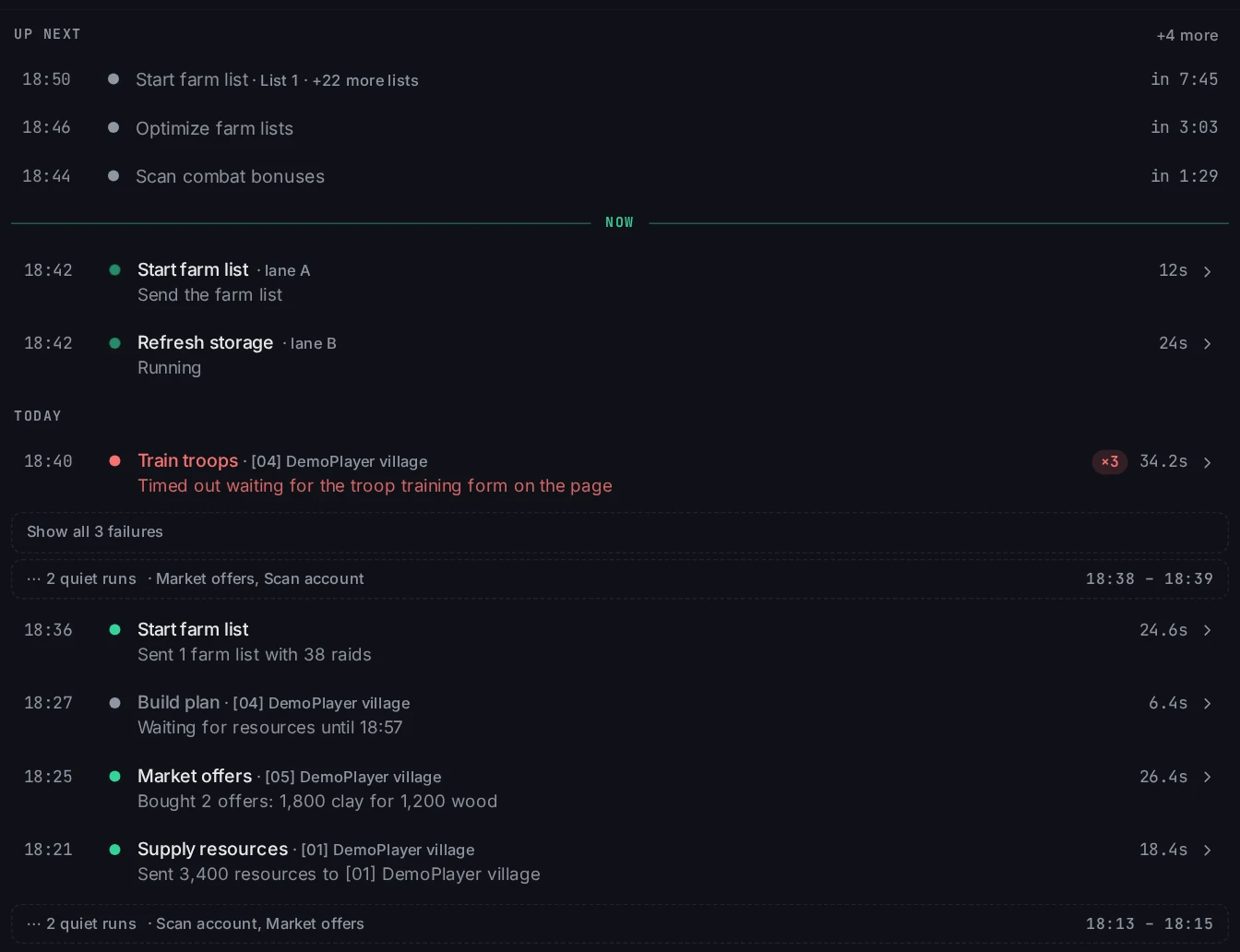
Up nextlists the next runs and the time until each one.- The
Nowline separates the runs to come from the runs that already ran. - Each past run shows its job, its village, what it did, and how long it took.
The timeline folds noise so the real work stays visible:
- Quiet runs had nothing to do. A row like
2 quiet runsholds them. Click it to see them. - Repeats are the same failure many times in a row. The newest one shows, with a count like
×3. ClickShow all 3 failuresto see each one. - Batches are many similar runs, such as farm lists sent one after another. They fold into one row with a count.
Use the search box, the village picker, and the time range (Last 15m to Last 24h) to narrow the timeline.
Why did my job not run?
Start in the job list. The reason line under the job name answers most cases.
Waiting for resources until 18:50and similar: the job waits for the game, not for you.Paused: click the job, then clickResume.Backing off after errors: the job failed and waits before it tries again.Schedulersays asleep: the account is outside its play time. See Schedules and safety.
Click the job for more. Its header shows Next run, Last run, and its runs in the last 24 hours. The timeline then shows only the runs of that job.
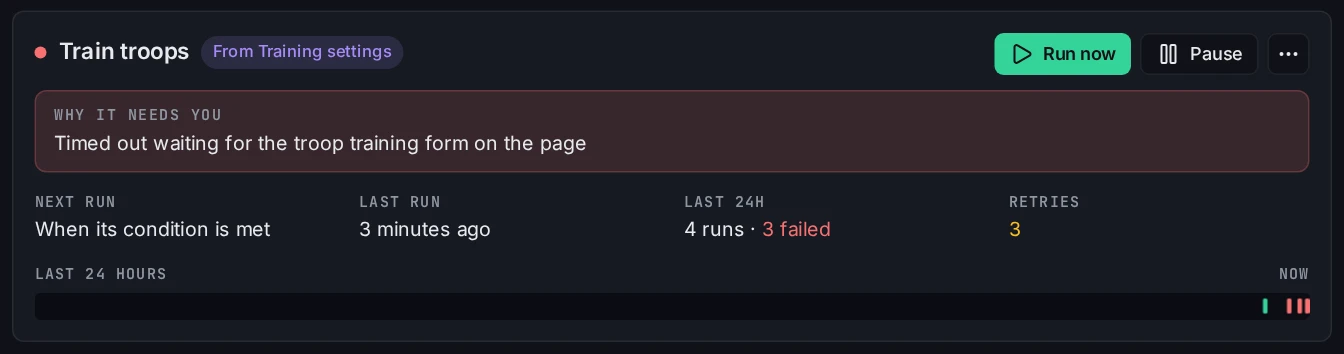
To see every job again, click the Job: Train troops chip above the timeline, or press Escape.
Find a failure and see what the agent saw
Turn on Problems only to see only the runs that failed or were cancelled.
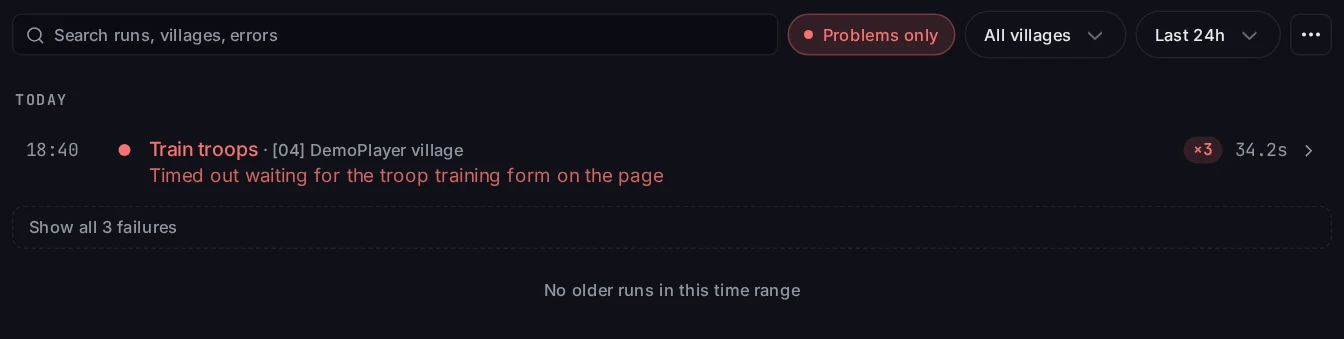
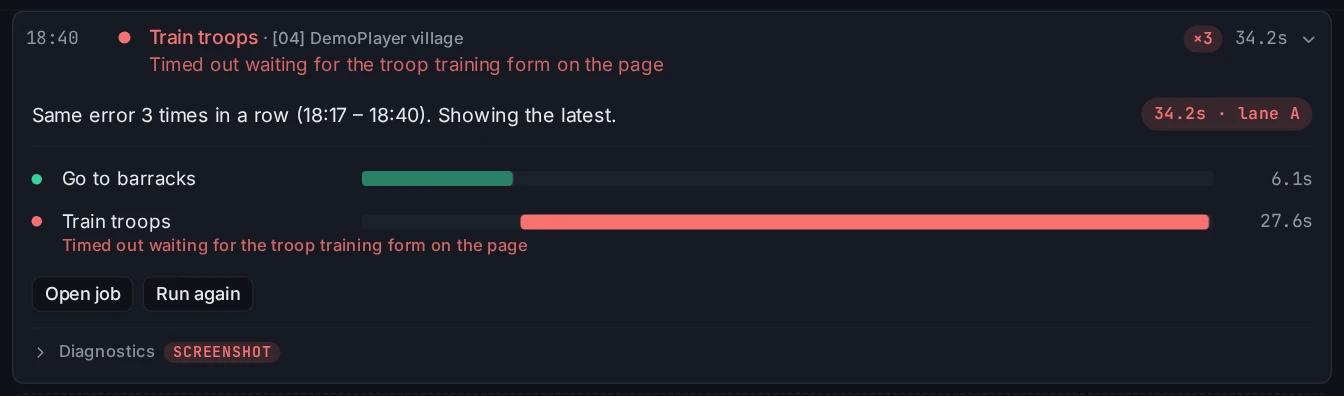
Click a failed run to open it. The detail shows each step, how long it took, and the step that failed with its error.
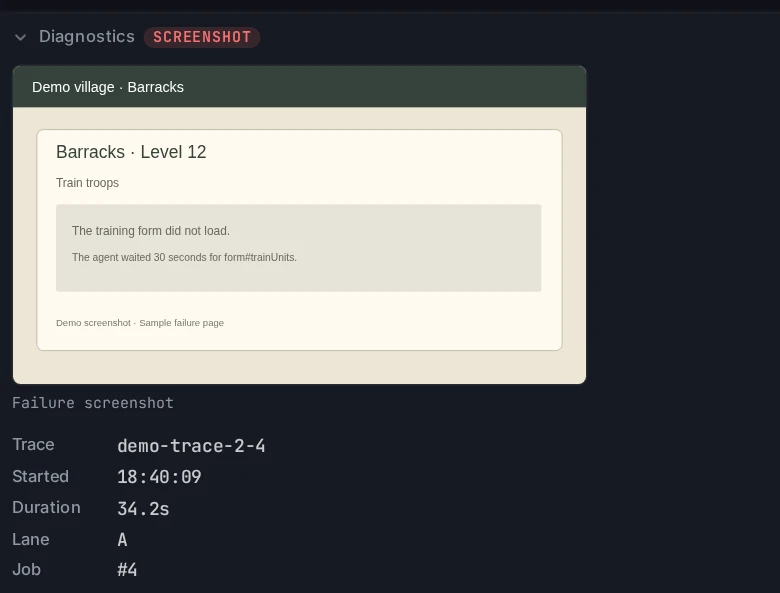
Open Diagnostics to see what the agent saw. The failure screenshot shows the game page at the moment the run failed. Click it to see it full size.
Tip: To ask for help, click
Copy link to this runinDiagnosticsand paste the link in your message.
Run a job now
You can start a job without waiting for its turn.
- Click the job in the job list, then click
Run now. - In a failed run, click
Run again. - Click
Pausenext toRun nowto stop a job until you resume it. - Use the
⋯menu on the job forDelete job…and a link to the settings that made the job.
The ⋯ menu next to the time range has Check jobs now, the export of the history as JSON or CSV, and Clear history….
New to Vangrd? Start with Getting Started.
Frequently asked questions
Where do I see what the bot is doing right now?
Open Status in the sidebar. The strip at the top shows the scheduler state, the job on each lane, and any job that needs you.
Why did my job not run?
Find the job in the job list on the left. The line under its name gives the reason, for example Waiting for resources until 18:50 or Paused. Click the job for its next run time and its last runs.
How do I find out why a run failed?
Turn on Problems only, then click the failed run. It shows each step with its time, the step that failed, and the error. Open Diagnostics to see the failure screenshot of the page the agent saw.
Can I start a job without waiting for its turn?
Yes. Click the job, then click Run now. After a failure you can also click Run again in the run detail.
Vangrd is a Travian bot that runs your account from the cloud, 24/7. Before you choose, see the best Travian bot 2026 comparison.
More guides
Getting Started with Vangrd: Connect an Account and Launch Automation
Add your Travian account, review the dashboard, and turn on your first build, farm, and training automations in Vangrd.
Travian Bot Schedules: Natural, Fixed, Agents, and Safety
Choose Natural or Fixed schedules, read achieved coverage, and align agent timezones, browser locale, and randomized browsing in Vangrd.
How to Build Custom Automation Workflows in Travian
Chain actions, branch on conditions, and loop over villages, then run your automation on a timer, a schedule, or on demand with Vangrd workflows.