How to Build Custom Automation Workflows in Travian
Open the Workflows page
Open Workflows in the sidebar to see every workflow on the account.
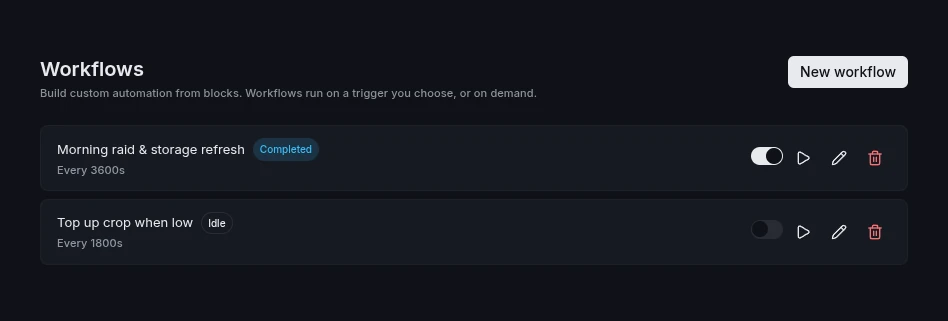
- Click New workflow to start a blank one.
- Each card shows its trigger and last run status.
- Toggle the switch to arm or disarm a workflow.
- Hit Run now to fire it once, ignoring the trigger.
Build a program from blocks
A workflow is a list of blocks that run top to bottom. Drag to reorder, and select a block to configure it in the side panel.
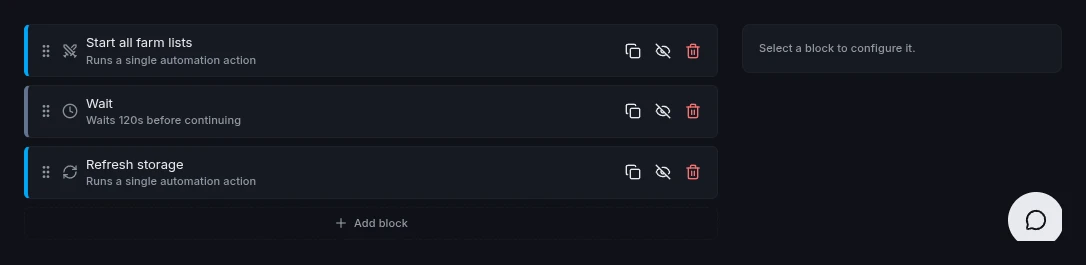
- Each action block wraps one automation task and exposes that task's own settings.
- Duplicate, disable, or delete a block from its row.
- A disabled block stays in the list but is skipped on each run.
Add actions and control flow
Click Add block to open the palette, grouped into actions and control blocks.
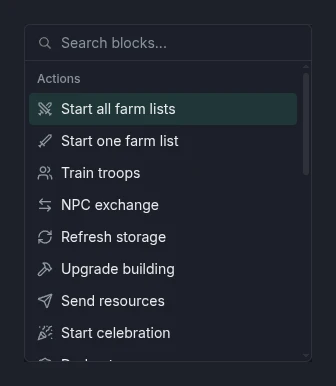
- Actions run one task: start all or one farm list, train troops, NPC exchange, refresh storage, upgrade a building, send resources, start a celebration, dodge or recall troops, swap the hero helmet, scan a tracked player, tune farm troops, or collect daily rewards.
- A few actions skip the game window entirely and update your account straight away: apply a build plan template to a village, and set up or pause a supply line between two villages.
- Control shapes the flow: If / Else, Repeat a fixed number of times, and For each over villages, farm lists, or tracked players.
- Utility covers Wait, Log message, Set variable, and Stop.
Tip: Start from a ready-made template instead of an empty workflow. New village kickstart applies a build plan and sets up a supply line the moment a new village settles. Pick your template and donor village after creating it.
Branch on conditions
An If / Else block runs its then branch only when a condition holds, and its else branch otherwise.
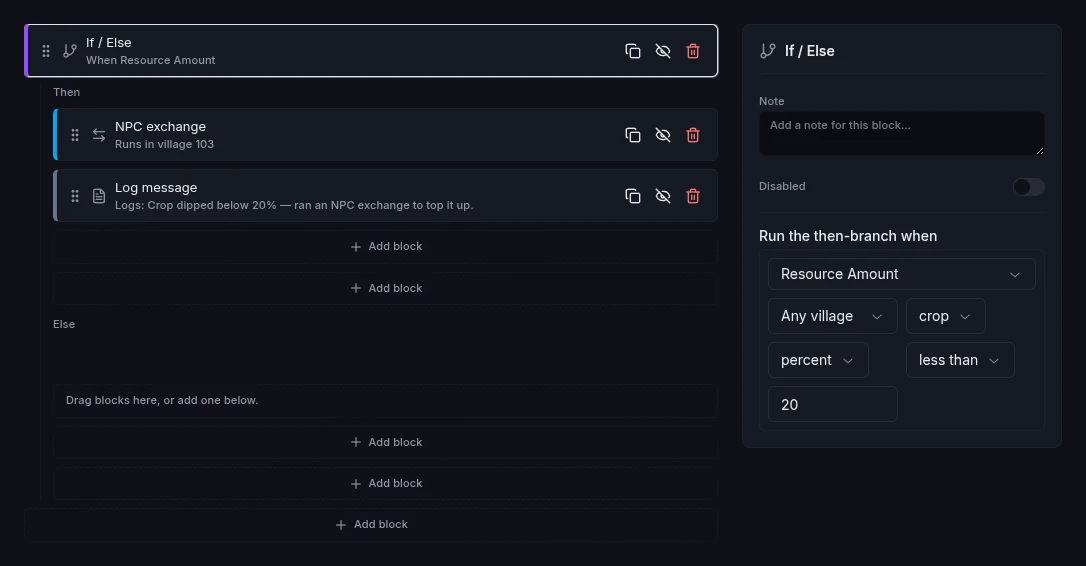
- Conditions read live account state: resource amount, building level, incoming attack, idle troops, hero at home, time of day, and more.
- Pick a village or Any village for village-scoped checks.
- Combine an If with a For each to react per village, for example top up crop only where it dips below a threshold.
Tip: Put a Log message at the end of a branch so its run history tells you which path fired.
Use variables and live game state
A Set variable block can set a fixed value, copy another variable, read live game state, or calculate one from the other two.
- Live game state reads current gold, silver, hero health, culture points, village storage and production, troop counts, merchants available, build queue length, and incoming attacks. Pick a village for village-scoped reads.
- A calculation adds, subtracts, multiplies, divides, or takes the minimum or maximum of two values. Each side can itself be a fixed value, a variable, or game state.
- Every reading shows how stale it is, for example "As of last scan, 12m ago", so you know how fresh the number is.
- Reference a variable or game state in a Log message with
{name}, for example a message like "Crop at {village} is now {cropLevel}".
Tip: Use a calculation to keep a running total, for example adding troops trained to a counter variable each time a loop runs.
Choose a trigger and run it
The Trigger section decides when the workflow runs.
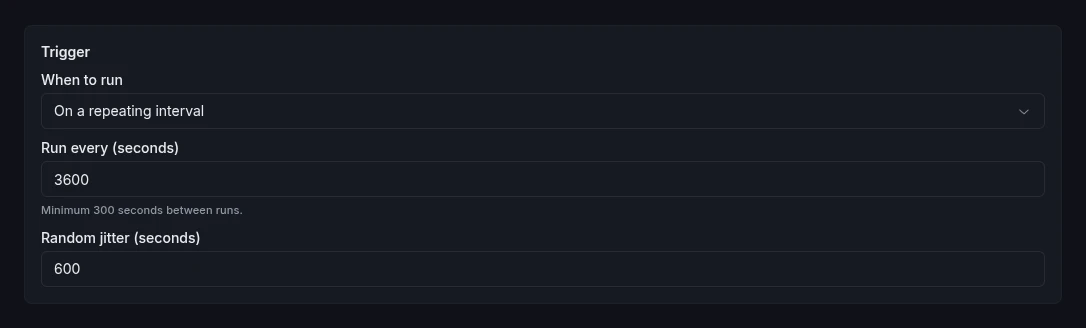
- Manually fires only when you press Run now.
- On a repeating interval runs every N seconds, with a 300-second floor and optional jitter to vary the timing.
- On a schedule (cron) runs at cron times in your account timezone.
- On a game event fires when something happens, for example a building finishing, your hero returning home, or a new village settling.
Trigger on a game event
Pick On a game event, then choose which event.
- Events that carry data, like New village settled, show which fields it provides (village id, name, x, y) and let you save each one to a variable.
- For New village settled you can also limit the trigger to one exact coordinate, so a workflow only fires for a village you plan to settle at that spot.
- A cooldown (default 300 seconds, minimum 60) stops the workflow firing again too soon after it finishes.
Arm the workflow with the switch on its card. While it runs, the editor highlights the current block and the run history panel records each attempt.
New here? Start with the Getting Started guide. To align triggers with your activity windows, see Schedules and Safety.
Frequently asked questions
What can a Vangrd workflow do?
A workflow chains automation actions (start farm lists, train troops, NPC exchange, refresh storage, send resources, apply a build plan template, set up a supply line, and more) with control blocks for conditions, loops, and delays. It runs the whole sequence for you on a trigger you choose.
How is a workflow different from the built-in jobs?
Jobs each automate one thing. A workflow lets you compose several actions into one program, branch on conditions like low crop, and repeat steps across villages, so you control the exact order and logic.
When does a workflow run?
Pick a trigger: manually with the Run now button, on a repeating interval (minimum 300 seconds, with optional jitter), on a schedule with a cron expression, or on a game event like a new village settling. Enable the switch on the workflow card to arm it.
Can a workflow react to a new village?
Yes. Set its trigger to the village settled event. The village's id, name, and coordinates are available to the workflow, so you can apply a build plan template and set up a supply line into it automatically. The New village kickstart template sets this up for you.
Can I see whether a workflow worked?
Yes. The editor highlights the block that is running or waiting, and the run history panel lists past runs with their status so you can spot failures.
Vangrd is a Travian bot that runs your account from the cloud, 24/7. Before you choose, see the best Travian bot 2026 comparison.
More guides
Getting Started with Vangrd: Connect an Account and Launch Automation
Add your Travian account, review the dashboard, and turn on your first build, farm, and training automations in Vangrd.
Travian Bot Status: See What Your Bot Does and Why
Use the Vangrd Status page to see what your Travian bot runs now, what runs next, why a job did not run, and what the agent saw when a run failed.
Travian Bot Schedules: Natural, Fixed, Agents, and Safety
Choose Natural or Fixed schedules, read achieved coverage, and align agent timezones, browser locale, and randomized browsing in Vangrd.