Travian Otomatik İnşaatçı: Bina Kuyruklarını ve Yükseltmeleri Otomatikleştirin
Vangrd'ın Travian otomatik inşaat botu, her köy için bir inşaat planı izler. Hedef seviyeleri ve ortak varsayılanları belirleyin. Farklı davranış isteyen planlarda köye özel ayarlar kullanın.
İnşa planları Köy Gelişimi içinde yer alır
Her köyün inşa kuyruğunu Villages > Development altında yönetin.
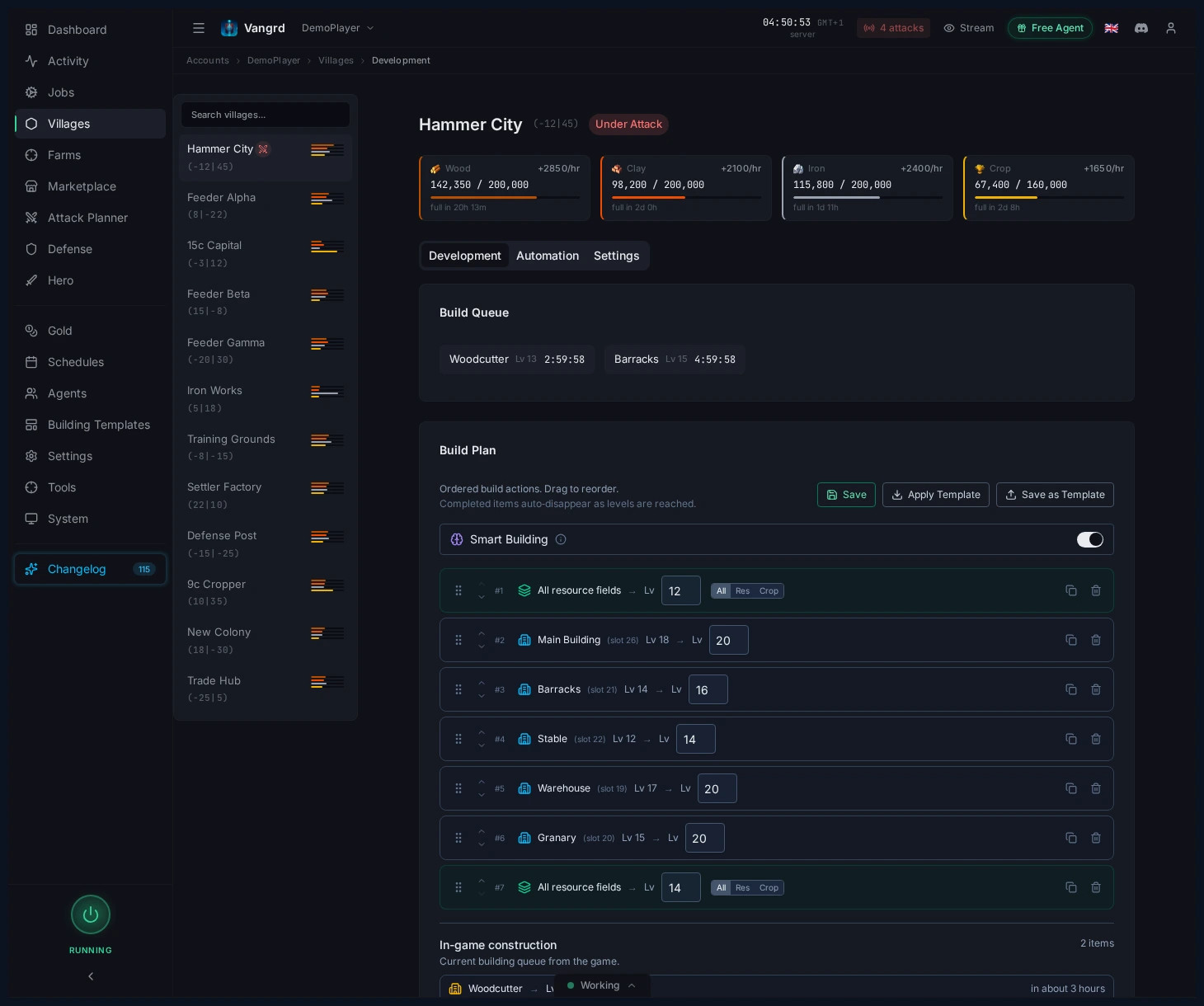
Build Plan, Vangrd'ın o köy için sırayla işlediği listedir.Demolish Plan, yıkım işleri için ayrı bir listedir.- Girdileri doğrudan köy planından yeniden sıralayın, çoğaltın ve kaldırın.
Ön koşul binaları, bunlara ihtiyaç duyan yeni inşaatlardan önce yerleştirin. Kesin inşaat sırası önemliyse ayrı plan girdileri kullanın. Genel tarla gelişimi için her alanı tekrarlamak yerine tarla hedefi kullanın. Hedefleri değiştirmeden önce mevcut kuyruğu kontrol edin; Vangrd devam eden yükseltmeleri hesaba katar.
Hedefleri yerleştirmek için köy haritasını kullanın
Bir planı hızlıca başlatmak veya ayarlamak için köy haritasındaki yuvalara tıklayın.
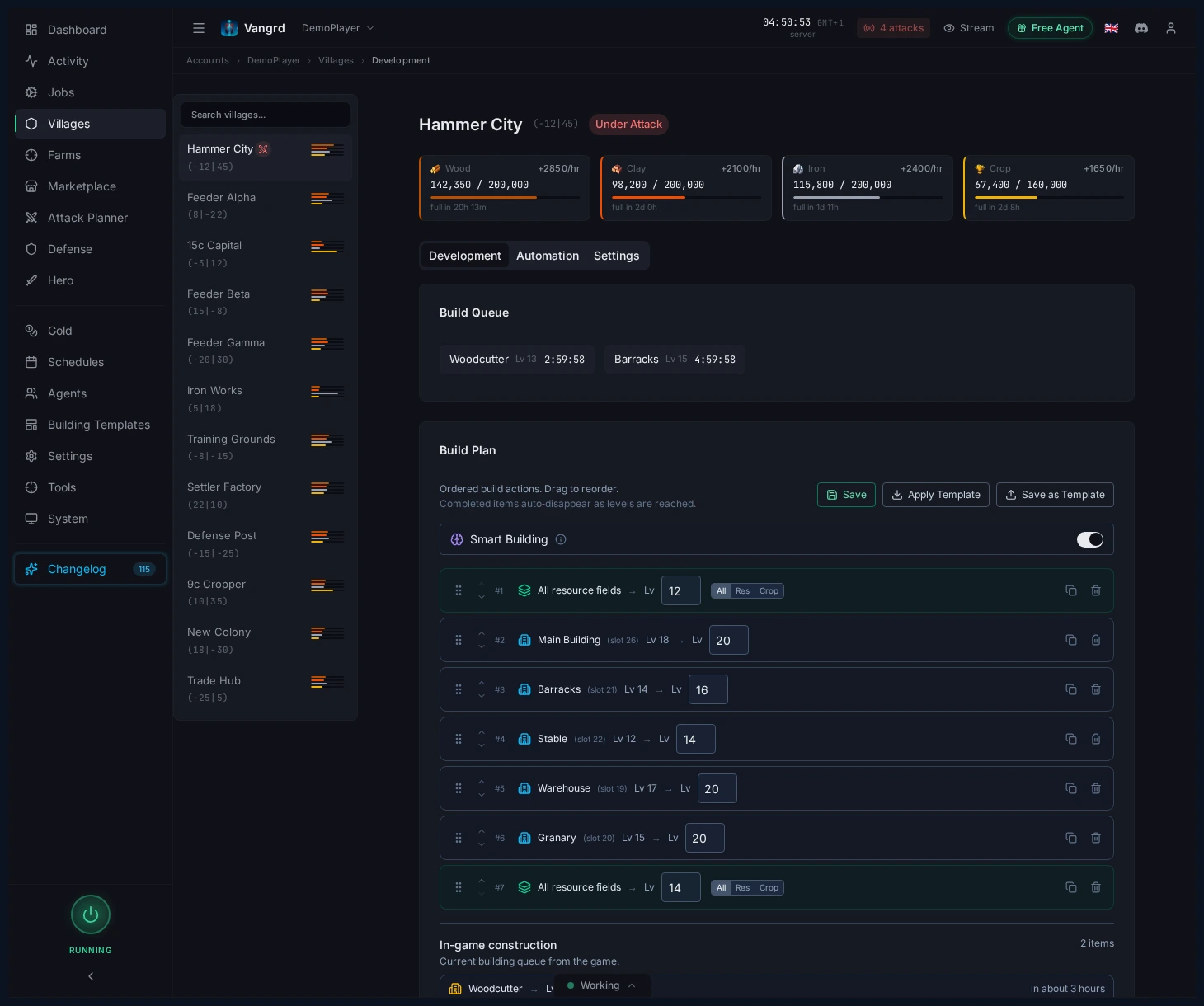
- Yeni bir köy şekillendirirken haritadan belirli binalar ekleyin.
- Her yuvayı tek tek listelemeden geniş kaynak alanı ilerlemesi için alan hedeflerini kullanın.
- Bir şablonu kaydetmeden önce sıradaki hedefleri canlı düzenle karşılaştırın.
İpucu: Her köy türü için temiz bir başlangıç planı tutun ve sıfırdan yeniden oluşturmak yerine onu kopyalayın.
İnşaat botu sonraki yükseltmeyi nasıl seçer?
Vangrd planı köyün binaları, hammaddeleri, depo kapasitesi ve kuyruktaki boş yerlerle karşılaştırır. Hedefine ulaşmış bir girdi başka yükseltme gerektirmez.
Ön koşulları ve hammaddeleri kontrol edin
Yeni inşaattan önce Vangrd, gereken binaların gerekli seviyelere ulaşıp ulaşmadığını kontrol eder. Hâlâ inşa edilen bir bina tamamlanmış ön koşul sayılmaz. Sonraki inşaatı mümkün kılmak için ön koşul yükseltmelerini planın başına alın.
Smart Building, başka bir girdi beklerken hazır girdinin ilerlemesini sağlar. Örneğin, pahalı bir bina hammadde beklerken tarla yükseltmesi devam edebilir. Vangrd seçilen yükseltmeyi başlatmadan önce yine maliyeti ve kuyruk yerini kontrol eder. Tüm girdiler daha fazla hammadde istiyorsa plan, bir yükseltme karşılanabilir olana kadar bekler.
Depo kapasitesi engelini çözün
Depo engeli, yükseltmenin bir hammaddeden köyün depolayabileceğinden fazlasını istemesidir. Kereste, kil ve demir Hammadde Deposu kapasitesini kullanır. Tahıl, Tahıl Deposu kapasitesini kullanır.
Auto-upgrade storage açıkken Vangrd, engellenen inşaattan önce bir depo yükseltmesi seçer. Mevcut depo binalarını ve yapılabilecek yeni depoları kontrol eder. Seçim eksik kapasiteye, yükseltme maliyetine ve mevcut hammaddelere bağlıdır. Depo yükseltmesinden sonra maliyet kapasiteye sığdığında Vangrd asıl plana devam edebilir.
Dolu bir Hammadde Deposu tek başına inşaatın daha fazla kapasite istediği anlamına gelmez. Şablona depo eklemeden önce planlanan maliyetin kapasiteyi aşıp aşmadığını kontrol edin. Kahraman hammaddeleri bu engeli çözmez; köyün gereken hammaddeleri tutacak yere ihtiyacı vardır.
Doğru inşaat kuyruğunu kullanın
Romalılar, hammadde tarlaları ve köy binaları için ayrı kuyruklara sahiptir. Vangrd seçilen yükseltmenin kuyruğunu ve toplam kuyruk sınırını kontrol eder. Dolu bina kuyruğu, tarla yükseltmesi için hâlâ yer bırakabilir. Diğer halklar kuyruktaki boş yerleri tarlalar ve binalar arasında paylaşır. Bu davranışı köyün halkı belirler. Roma kuyruğu için ayrı bir anahtar açmanız gerekmez.
Build Plans üzerinde hesap varsayılanlarını ayarlayın
Paylaşılan inşa davranışını Build Plans sayfasında yapılandırın.
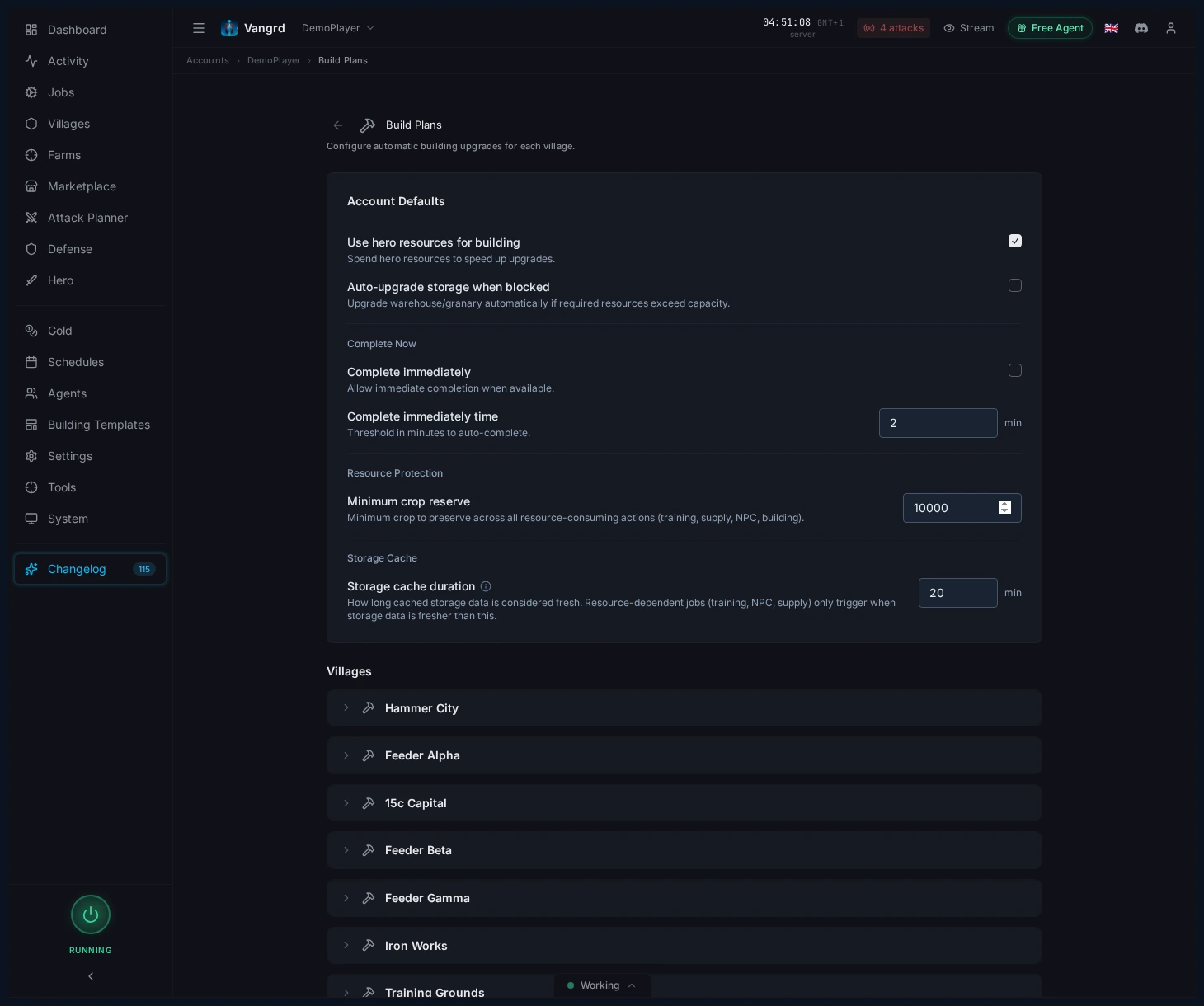
Smart Building, pahalı yükseltmeler beklerken daha ucuz hazır öğelerin devam etmesini sağlar.Use hero resources, inşaat işleri için kahraman envanterinden kaynak kullanır.Special upgrade, desteklendiğinde ekstra yükseltme yolunu açıp kapatır.Auto-upgrade storage, kuyrukların depo veya tahıl ambarı kapasitelerinde takılmasını önler.Complete immediately, altının uzun yükseltmeleri ne zaman bitirebileceğini tanımlar.Minimum crop reserve, bakım masrafı için gereken tahılı korur.
Aynı inşaat kurallarını köylere uygulamadan önce varsayılanları belirleyin. Köy, diğer hesap varsayılanlarını koruyarak tek tek ayarları değiştirebilir. Köyün sonraki hesap değişikliklerini izlemesini istediğinizde varsayılana dönün. İnşaat için hammadde harcamasını açmadan önce asker bulunan köylerin tahıl rezervlerini inceleyin.
Yeniden kullanılabilir şablonları yönetin
Açılışları ve köy arketiplerini Templates sayfasının Building sekmesinde kaydedin.
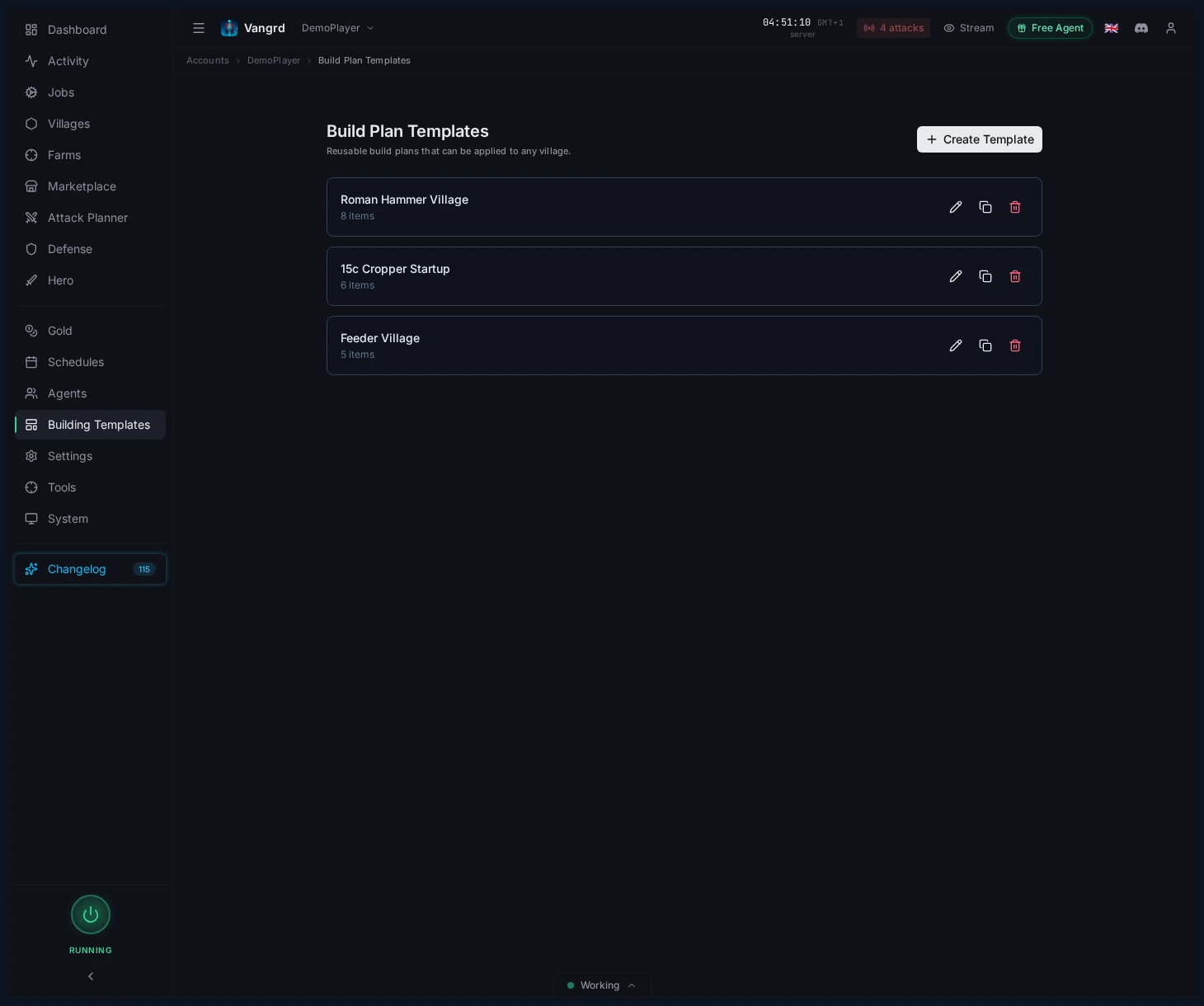
- Şablonları sıfırdan veya mevcut bir köyden oluşturun.
- Başkentler, besleyici köyler, saldırı köyleri ve göçmen köyleri için ayrı şablonlar tutun.
- Köy türleri arasındaki küçük farklar için varyantları çoğaltın ve düzenleyin.
Birçok köyde inşaat planlarını çalıştırın
Ortak davranış için hesap varsayılanlarını, her köy için ayrı bir inşaat planını kullanın. Böylece başkent ve destek köyü aynı inşaat ayarlarını kullanırken hedefleri ayrı kalır.
Build Planssayfasında ortak davranışı ayarlayın.TemplatessayfasınınBuildingsekmesinde başkent, destek köyü, saldırı ordusu ve göçmen şablonları kaydedin.- Uygun şablonu uygulamadan önce her köyün halkını ve mevcut yerleşimini kontrol edin.
- Farklı tahıl rezervi veya altın politikası isteyen köylerin ayarlarını değiştirin.
- Şablonu uyguladıktan sonra her köyün planını ve mevcut kuyruğunu inceleyin.
Saldırı köyünde başka inşaatı finanse etmeden önce askerlerin tüketimine yetecek tahılı ayırın. Destek köyünde, sağlamasını istediğiniz hammaddelere uygun tarla hedefleri kullanın. Yeni köy kurma binalarını göçmen şablonunda tutarak hedeflerini başkent planından ayırın. Şablonlar plan girdilerini köye kopyalar. Kaydedilmiş şablonu sonradan değiştirirken hedef köyün planını inceleyin.
Yeni köyler yeni köy başlangıç iş akışını kullanabilir. İş akışı köy kurulduğunda seçilen planı uygular ve bir tedarik hattı kurar. İş akışını hazır duruma almadan önce inşaat şablonunu ve bağışçı köyü seçin. Kuruluştan sonra eylemlerin çalıştığını doğrulamak için çalıştırma geçmişini kontrol edin.
Yeni köyü bağışçılarla finanse etmek için köyler arası tedarik hatlarını ayarlayın. İnşaat planı yükseltme hedeflerini belirler. Tedarik hattı bunlara ulaşmak için gereken hammaddeleri taşır. Yeni köyün başka yerde gereken hammaddeleri almaması için bağışçı rezervlerini inceleyin.
Şablonları düzenleyin ve uygulayın
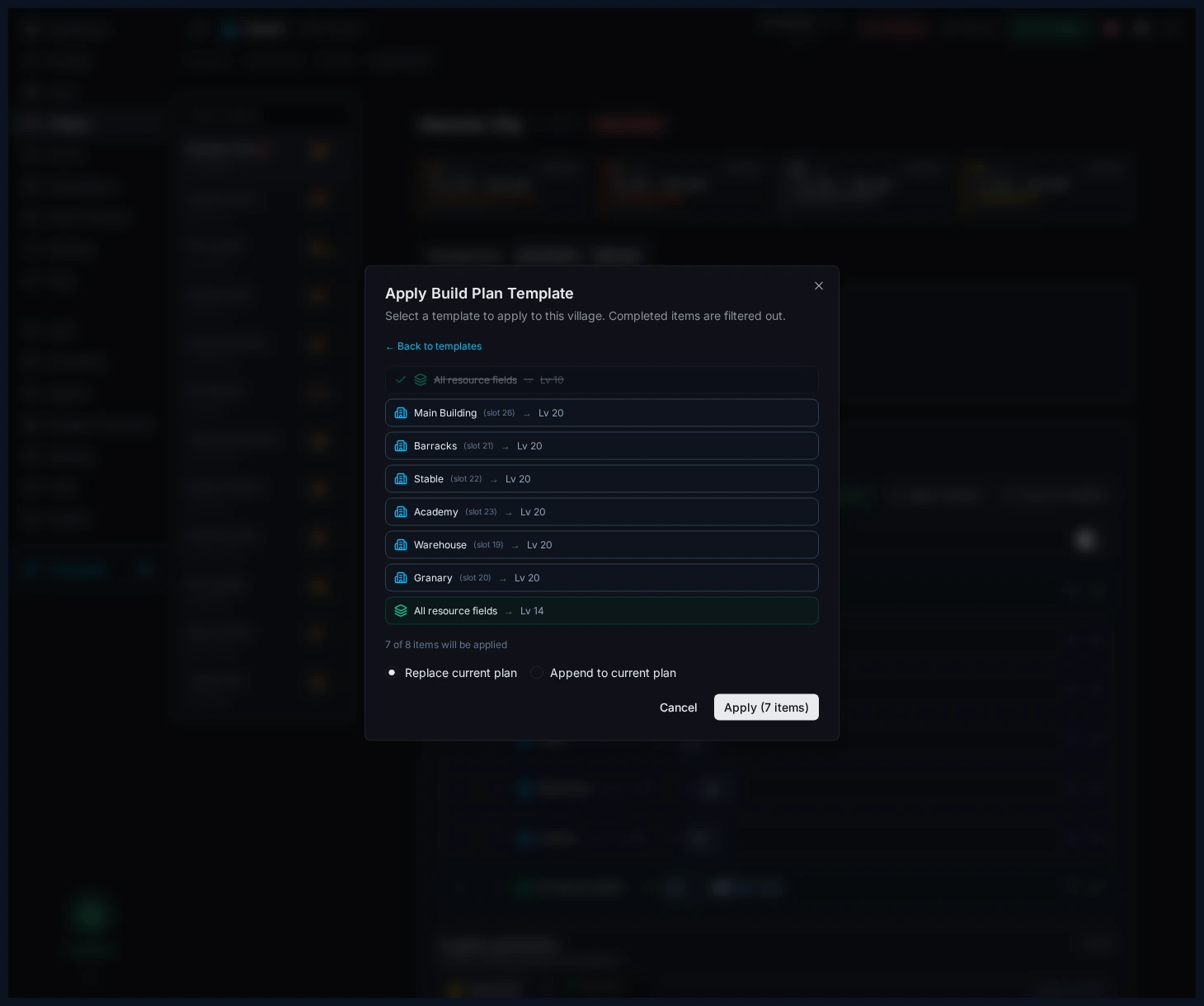
Şablonları harita arayüzüyle düzenleyin, sonra bir önizleme penceresi üzerinden köy planlarına aktarın.
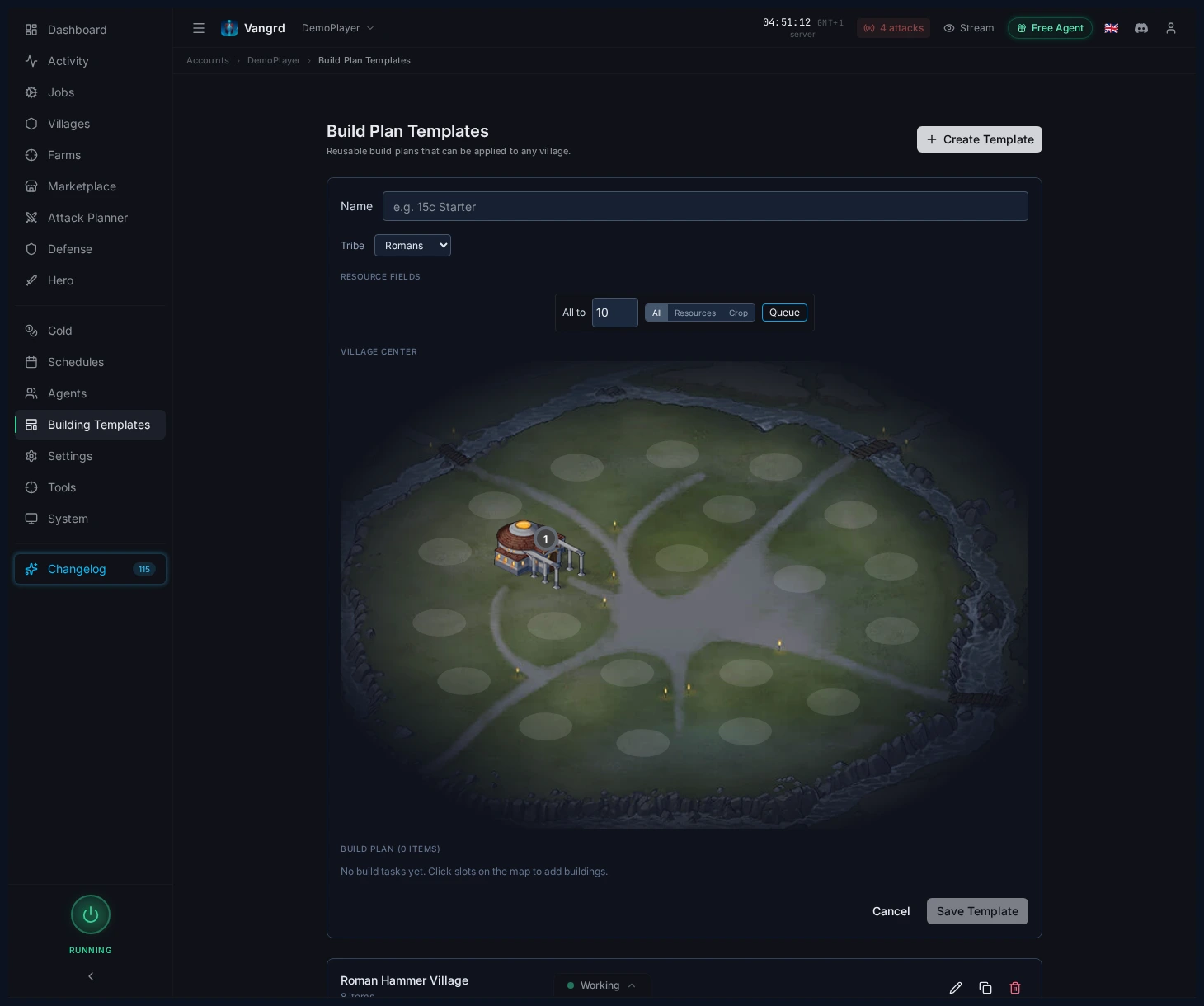
- Binaları yerleştirmeden önce kabileyi seçin.
- Hızlıca bir hedef tabanı ayarlamak için toplu alan işlemlerini kullanın.
Apply Template, sonucu önizler ve hedef planıReplaceveyaAppendetmenizi sağlar.
Yükseltmeleri altınla tamamlayın
Vangrd'ın uygun yükseltmelere altın harcamasını istiyorsanız Complete immediately açın. Otomatik tamamlama eşiğini belirlemek için Complete immediately time değerini dakika olarak ayarlayın. Ortak hesap varsayılanını kullanın veya tek bir köyde ayarı değiştirin.
- Otomatik tamamlamayı açmadan önce zaman eşiğini kontrol edin.
- Yükseltmelerin normal bitmesini istediğiniz köylerde ayarı kapalı tutun.
- Farklı tamamlama politikası isteyen planda köye özel ayar kullanın.
Bu ayar her inşaatı anında tamamlanabilir hâle getirmez. Vangrd yükseltmeyi tamamlamadan önce oyun seçeneğini kontrol eder. Altınla tamamlama, sonraki plan girdisinin eksik hammaddelerini veya ön koşul binalarını da sağlamaz. Yükseltme bitmesine rağmen plan bekliyorsa bu gereksinimleri kontrol edin.
Köy ekonomisi desteği için bunu Kaynak Tedariki rehberi ile birlikte kullanın. İlk kurulum için Başlangıç ile başlayın.
Sık sorulan sorular
Vangrd yükseltmeleri altınla anında bitirebilir mi?
Evet, Build Plans sayfasında Complete immediately özelliğini etkinleştirdiğinizde. Altının uzun yükseltmeleri hangi koşullarda bitirebileceğini siz belirlersiniz, böylece yalnızca gerçekten önemli olduğu yerde devreye girer.
Smart Building ne yapar?
Smart Building, pahalı yükseltmeler kaynak beklerken plandaki daha ucuz hazır öğelerin devam etmesini sağlar. Bu, kuyrukların tek bir büyük öğede takılıp kalması yerine ilerlemeye devam etmesini sağlar.
Her köyün planını sıfırdan mı oluşturmalıyım?
Hayır. Açılışları ve arketipleri Templates sayfasının Building sekmesinde kaydedin, sonra bunları mevcut planı Replace veya Append etmenizi sağlayan bir önizleme penceresiyle köylere uygulayın. Romalılar, Tötonlar ve Galyalılar kendi düzenlerine sahip olur.
Depom dolduğunda kuyruk durur mu?
Auto-upgrade storage açıksa durmaz. Vangrd, kuyrukların depo veya tahıl ambarı kapasitelerine takılmaması için depoyu ve tahıl ambarını otomatik olarak yükseltir.
Vangrd inşaatlar için kahramanımın kaynaklarını kullanabilir mi?
Evet. Hesap genelindeki Build Plans varsayılanları altında Use hero resources seçeneğini açın; Vangrd, bir inşaat işinde kaynak eksik olduğunda kahraman envanterinden kullanır.
Asker bakım masrafı için tahılı nasıl korurum?
Build Plans sayfasında bir Minimum crop reserve ayarlayın. Vangrd, bir inşaat işinin kaynakları karşılayıp karşılayamayacağını değerlendirirken bu miktarı dokunulmaz kabul eder.
Vangrd, hesabınızı bulut, 7/24 üzerinden çalıştıran bir Travian botu aracıdır. Seçmeden önce en iyi Travian botu 2026 karşılaştırması sayfasına bakın.
Daha fazla rehber
Travian vaha yağması: temizleme, yağma ve kahraman deneyimi
Travian vaha yağmasını kurun: yakın vahaları tarayın, hayvanları güvenle temizleyin, yeniden doğan hayvanlara düzenli yağma gönderin ve kahramanınızı geliştirin.
Travian savunma botu: otomatik kaçış, takviye ve saldırı uyarıları
Travian savunmasını köy ve tehdit seviyesine göre ayarlayın: kaçış, takviye çağırma, hammadde harcama veya gönderme, Discord veya Telegram uyarıları.
Travian farm botu: yağma listelerini ve yağmaları otomatikleştirin
Travian yağma listelerini rastgele gecikme, listeye özel ayarlar, tüm birliklerin kaybedildiği raporlar sonrası kayıp yönetimi ve verim ayarıyla çalıştırın. Vangrd farm botunu kurun.